Over the past year, AI image generation tools have genuinely improved. I often throw in a single sentence and quickly get a draft with thoughtful composition and comfortable colors—at first glance, it fully qualifies as a design draft. But every time I reach the "what next" step, I get stuck.
Want to change a button's copy? Redraw. Want to adjust one spacing value? Redraw. Want to hand it to the frontend? The frontend can only trace pixels. The worst part is that this image has nothing to do with the team's design assets—font sizes can't go into the style library, colors can't be attached to variables, the Logo is casually drawn by AI, and I don't even know which font it used.
I only truly understood where the difficulty lies after trying a few times. First is editability: any change to a bitmap is a redraw, and every team iteration has to start from a redraw. Second is fonts: I simply can't control which font AI used. It may look fine in the draft, but my machine doesn't have it, and everything falls apart as soon as I open it. Third is assets: where the Logo should come from, how to make a transparent background, which icon system to use—none of these are answered by "generate an image."
It's not that I think AI doesn't draw well enough. It's that I've realized:Image generation solves "does it look like a design draft," while design delivery needs "can it keep being edited, can it enter the team workflow." Between these two things lies an entire missing set of tooling.

So I wrote a Skill called AItoFigma, running in Codex (for Codex's Skill specification, seeofficial documentation). Its goal is simple: turn "AI generates an image that looks like a design draft" into "constrained, validated, and written into Figma as editable native layers." The repository is at https://github.com/Niall-Young/AItoFigma 。
Three ways to use it
One pipeline, three entry points.
Start from a single sentence (autonomous planning). You give only a brief, such as "design a 1440-wide data analytics landing page," and the AI builds the structure, sets the layout, and chooses the visuals from a blank start. This was the first pipeline I validated.
Recreate from a screenshot (high-fidelity replication). You provide a reference image, such as a screenshot of an iOS AI assistant welcome screen, and the AI recreates it as layers as faithfully as possible—even the 44px status bar and the 34px Home indicator are built as semantic nodes rather than approximated.
Borrow an artboard style (style reference). You provide a Figma node link, and the AI extracts its visual language—color palette, font weights, spacing rhythm, icon style—but re-plans the information architecture.
All three entry points end at the same place: editable native layers in Figma.
Think it through first, then let the AI act
The most counterintuitive part of this method is:In the first four steps, you don't write a single line of code.。
The traditional approach is “let AI generate directly.” I do the opposite—first think through everything that needs thinking, and only allow it to act once all checks pass. The complete process is a nine-step state machine: parse intent → goal gate → scaffolding → font gate → asset gate → build → local acceptance → re-verification before writing → capture and read-back. I’ll explain a few key concepts.
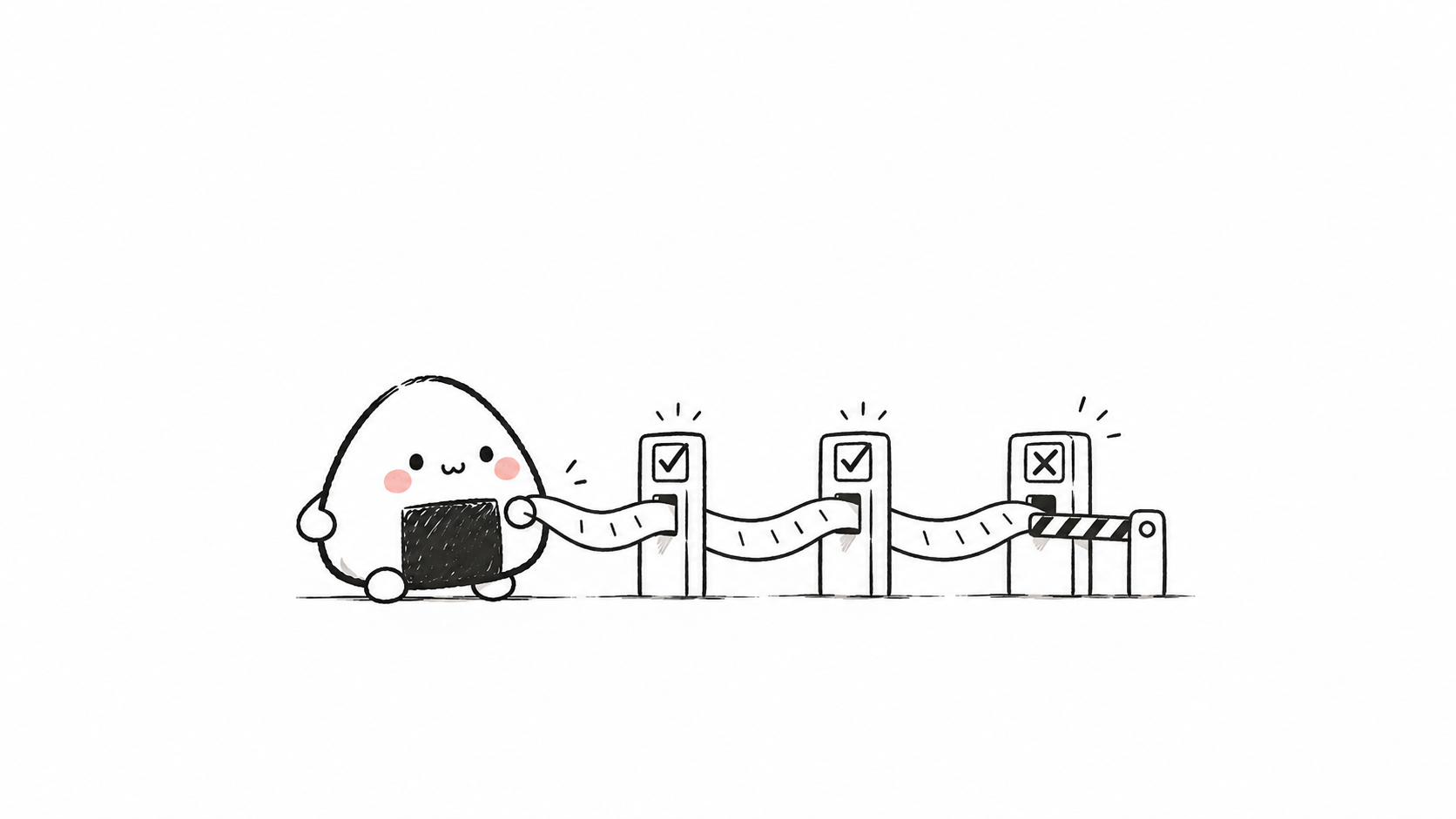
Target gate: before getting started, first answer "where to write"
Before starting work, the Figma delivery target must be parsed: write into an existing file, or create a new one. If the target is not clearly parsed, not even the working directory is allowed to be created. This step is small, but one of the most common failures of AI is writing things into the wrong location.
Once the target is set, the scaffolding step does only one thing: set up design.md and the assets directory,explicitly no HTML. The essence of this approach is hidden right here—establish the contract first, then discuss implementation.
Font gate: only use fonts already on your computer
The AI-generated draft used a font you haven't installed, and opening it turns into tofu blocks. The rule of this process is: only fonts already installed locally are allowed, with PingFang SC by default, no downloading, no remote loading, no @font-face. If a certain display font is not available locally, it will explicitly record "what was replaced and why" instead of silently substituting it.
Asset decision table: every element on the page must be accounted for
Before starting, the AI will go through every non-text visual element on the page and put it into a decision table, one element per row. It looks like this:
Visual element | Purpose | Source | Handling | Status |
|---|---|---|---|---|
Logo | Brand identity | Official original asset | Use as-is | ready |
Key visual | Above-the-fold attention grabber | Image generation tool | Background removal + validation | ready |
Icons ×12 | Feature entry point | Open-source icon library MingCute | Inline SVG | ready |
Every element must answer: what is it, what does it do, where does it come from, does it need a transparent background, and how should it be processed.If any row isn't ready, the process stops before HTML generation, and explicitly tells you what's missing. This table is a design contract, and also the only record for later tracing back "why we made this decision back then."
This table also has a two-way check: if something is registered in the table but not used in the HTML, an element was missed; if something appears in the HTML but not in the table, the AI quietly added something extra. Both ends can be caught.
Image generation plays a restrained role here. It is just one processing method in the decision table, and is only allowed for "non-identity-critical, and genuinely missing" key visuals. Identity assets like Logo never rely on image generation. Even when generating images, there is discipline—choose the background key color based on the subject's brightness, remove the background, run a four-cell alpha validation, and stop after one failed correction.
Local acceptance: verify on your own machine first, then talk about importing into Figma
After HTML generation, first run validation locally, start a preview service, take full-page screenshots, and review them manually. If there are errors, it doesn't even qualify for request capture. This step turns "AI generation → direct delivery" into "AI generation → local acceptance → controlled write."
Capture and read-back verification: writing is not the end; you must read it back to confirm
Writing into Figma uses Figma's official code-to-canvas capability (Figma MCP's generate_figma_design, seeofficial documentation). I designed the capture ID to be single-use, with the capture scope locked to a unique root node. I locked the scope down because I've been burned: without locking, AI easily captures the entire browser viewport, and an extra background frame appears in Figma that designers then have to delete manually. Rather than clean up afterward, it's better to prevent it at the mechanism level. After writing, you must read back the top-level node's metadata and screenshot, and verify dimensions and hierarchy.On failure, only one justified correction is allowed; if the second attempt fails, stop and report—no repeated trial and error, no silent degradation.
Code only appears in the "build" step, and there is a hard rule: HTML must be purely static—inline CSS, no frameworks, no CDN, no remote fonts.
Why install so many gates
If I only wanted "AI to produce a good-looking image," this nine-step process would be entirely superfluous. But what I want is not an image; it's adeliverable。
Keeping these two things clearly separate was the biggest takeaway from building this Skill. Reference images only need to "look like it"; deliverables must be "editable," and must be able to keep being used within the team.
For designers, what you get is layers, not a dead image. Captured frames become standard Figma design layers—the official documentation's exact wording is "Captured frames become standard Figma design layers"—text becomes text layers, shapes become shape layers, and icons are vectors. If the target file has a variables library attached, Figma will also automatically bind color, numeric, and string variables to the captured layers (see Figma MCP documentation). This is something a simple screenshot cannot do.
For the team, design decisions gain an audit trail. On every delivery, design.md records the complete design contract, and validation-report.json records the acceptance results. Why this font was changed, where this asset came from, why it was decided this way back then—all fully traceable. These records are not reports for outsiders to read—when I revise the next round of drafts myself, I often have to go back and check "why was this key visual set to have its background removed back then"; without this table, I could only guess.
For the brand, the Logo is a red line. Only original files or first-party resources are accepted; AI may not generate it, may not crop it from a screenshot, and may not approximate or imitate it. If no official source can be found, the process stops at the asset gate and tells you plainly, "a Logo original file is missing."
So what I am doing is not "importing images into Figma." Image-import tools move pixels or DOM, with no layer of design intent. My approach is to first have AI write down the design decisions—how fonts are set, how assets are handled, how elements are organized—and then translate them into Figma layers through HTML, a controlled intermediate layer.design.md is the contract, HTML is the intermediate layer, and native Figma layers are the deliverable.

Conclusion
In the nine-step process, the first four steps generate nothing at all—they are pure thinking; if a single element is not ready, everything stops; after writing, you must read it back and verify it. This system is not cool; it deliberately works against AI's "one-shot impulse."
But I am increasingly convinced that design delivery was never meant to be a one-shot impulse. It is something that gets repeatedly edited, repeatedly used, and repeatedly handed off to others. Installing a gate on AI's design output, turning the result from "an image" into "a draft"—that is what I want to do.
43 likes
You can like once today